Make Copilot Citations Clickable in Two Clicks: User + Developer Guide
For users and developers: make Copilot citations clickable, respect permissions, and measurable. Covers response_semantics, JSONPath, and tracking.
· 14 min read

Copilot citations are the source references it attaches to a generated answer, and they only become clickable links when the underlying response carries a usable URL. Copilot renders a citation whenever a response includes recognizable citation metadata or fields it can infer, but a citation without a resolvable link shows up as plain, non-clickable text. Users get citations automatically by referencing files through the / command or References menu, while developers building plugins or connectors have to explicitly map response_semantics fields like data_path, url, and title for anything more complex than a simple file reference.
TL;DR:
- Most citation issues stem from missing or empty URL fields, which cause citations to appear as non-clickable or dead labels.
- Proper configuration of response_semantics, including correct JSONPath mapping and URL fields, is essential for generating valid citations in custom plugins.
- Copilot can reference up to 10 files from a SharePoint site and 20,000 list items, but connectors for external systems require admin-enabled configuration.
- For academic citations, Copilot and Word support standard styles like APA and Chicago, but users should manually import references into their bibliography tools.
- Clickable, verifiable citations are key to fostering trust and adoption, with organizations tracking actual usage and visibility through specialized tools like Authoritylayer.
Table of Contents
- How to Get Verifiable Copilot Citations Right Now
- Configuring Response_Semantics for Clickable Citations
- Making Copilot Reference a Specific File or Meeting
- Producing Academic Citation Styles With Copilot and Word
- Why Citations Go Missing, Truncated, or Dead
- Best Practices for Citations That Actually Get Used
- Privacy and Data Security Considerations for Copilot Citations
- When Copilot Citations Aren't Enough
- Getting Copilot Citations Into Your Existing Citation Workflow
- Why Citation Design Quietly Decides Whether Copilot Gets Adopted
- Track Where AI Assistants Are Actually Citing Your Brand
- Sources
- FAQ
How to Get Verifiable Copilot Citations Right Now
You don't need developer access to start getting grounded, checkable answers out of Copilot. Most citation problems people run into come down to not knowing which button to press or forgetting that Copilot needs a few minutes to "see" a file you just touched.
Here's a working sequence for getting citations you can actually trust:
- Type
/or open the Add menu in Copilot Chat to pull in files, people, meetings, or images directly, rather than describing what you want in prose. - Give it a moment. Copilot suggests content based on your recent interactions, and a file typically becomes referenceable only a few minutes after you've opened, modified, or shared it, according to Microsoft Support's guidance on referencing files.
- If you upload a local file straight into the chat, know that it gets saved to your OneDrive, not just held in the conversation.
- Turn off Work IQ when you specifically want Copilot to pull references only from the files you've named, not from its broader sense of what you're working on.
- For SharePoint or Teams documents, use cloud attachments instead of copy pasting text, so the citation points back to the live, permission-aware file.
- If a citation shows up but the text isn't clickable, that's usually not your fault. Ask your admin whether the integration behind that answer actually returns a URL field.
Getting this right takes maybe two extra clicks per question. The payoff is an answer you can actually verify instead of one you have to take on faith.
Configuring Response_Semantics for Clickable Citations
If you're building a Copilot plugin or MCP connector, citations aren't automatic. You have to tell Copilot where to find them.
The core mechanism is response_semantics inside your plugin manifest. It maps your API's raw JSON response to the fields Copilot needs to render a citation card. At minimum, you set data_path to point at the array or object holding your citable items, then map individual properties to title, url, subtitle, and optionally thumbnail. Microsoft's own documentation on response semantics for citations walks through this mapping in detail, and it's the single most important reference if citations aren't showing up the way you expect.
Copilot can also infer fields dynamically using well-known aliases when you haven't mapped everything explicitly:
- For
url: fields likeurl,link,href, orwebUrlget picked up automatically. - For
title:title,name,displayName, orsubjectwork as fallbacks. - For
subtitle: things likedescription,summary, orsnippetfill that role.
MCP connectors add a wrinkle. If your tool returns an MCP-style wrapper, the actual payload often sits stringified inside a content.text field. You need to parse that JSON before applying data_path, or Copilot simply won't find your items. Depending on your tool's shape, that might mean pointing data_path at $.results, $.content[0].results, or just $ at the root.
Pro Tip: Before you touch the manifest, paste your raw tool JSON into a JSONPath tester and manually confirm every item has a non-empty url field. An empty or missing URL is the single most common reason Copilot renders a citation as a dead label instead of a link, per Microsoft's own citation semantics guide.
Once you think the mapping is right, test it in the actual surface where people will use it. Outlook, Word, and Teams don't always render identically, even with the same manifest.
Making Copilot Reference a Specific File or Meeting
Beyond the basic / command, Copilot's referencing system has more range than most users realize, and a few hard limits worth knowing before you hit them.
You invoke References with / and choose from Files, People, Meetings, Chats, or you upload a local file directly, which lands in your OneDrive. Copilot ranks its suggested references using your recent interactions and how often you communicate with certain people or files, and those suggestions update multiple times a day.
A few limits shape what's actually achievable:
- Copilot can reference up to 10 files or pages from a single SharePoint site in one context pull.
- For list-based content, it supports referencing as many as 20,000 list items.
- Whether certain files even show up as suggestions depends on your Work IQ setting.
- Graph Connectors extend this grounding beyond Microsoft 365 entirely, pulling in content from systems like Confluence, Jira, or ServiceNow, provided your admin has those connectors enabled.
That last point matters more than it sounds. A lot of "Copilot won't find my document" complaints trace back to a connector that was never turned on.
Producing Academic Citation Styles With Copilot and Word
Copilot and Microsoft's own tools can generate proper academic citations, not just informal source mentions, and the workflow splits cleanly between two tools.
In Edge, you can prompt Copilot to take a URL or a block of text and format it into a specific citation style. Edge's citation formatting guidance confirms support for APA, MLA, Chicago, IEEE, Vancouver, and several other standard formats. The practical move is to give Copilot the source and name the exact style you need, rather than asking it to "cite this" and hoping it guesses right.
For a full bibliography, Word does the heavier lifting:
- Add each source under References > Insert Citation > Add New Source.
- Pick your target style from the References > Style dropdown before you start inserting.
- Once every source is entered, click Bibliography to auto-generate the full list, and use Update Bibliography if you add sources later, per Microsoft's bibliography instructions.
Academic guides, including Virginia Tech's citation resources, recommend treating Copilot output as an algorithmic source in its own right, cited separately from the primary sources it references.
Why Citations Go Missing, Truncated, or Dead
Most broken citations trace back to one of four causes, and they're worth checking in a specific order because some are far more common than others.
- Missing or empty
urlfield. This is the most frequent cause by a wide margin. If the field is blank, Copilot either omits the citation entirely or shows a non-clickable pill, exactly as Microsoft's plugin citation documentation describes. - Wrong
data_path. If it points at the wrong level of a nested structure, Copilot won't find your citable items at all, even though the data is technically there. - Unparsed MCP wrapper text. When a connector returns content nested inside a stringified
textfield, skipping the parse step before applyingdata_pathbreaks citation rendering silently. - Permission or 403 issues. A URL that resolves for your test account but not for the end user's identity will show a link that fails when clicked, which is arguably worse than no citation at all.
To debug, paste your raw JSON into a JSONPath tester, confirm every item actually has a non-empty url, adjust data_path if items are nested deeper than expected, and then test again in the real Copilot surface, not just a sandbox. One UX detail worth building around: long titles get truncated on mobile, so front-load the important words and skip filler. When you're not confident aliases will infer correctly, switch to explicit response_semantics mapping. It's more work upfront and considerably less debugging later.
Best Practices for Citations That Actually Get Used
Treat a citation as a navigation element, not decoration. A citation that just labels where an answer came from does less work than one built to be clicked, verified, and acted on.
A few practices separate citations that get used from ones that get ignored:
- Keep titles short and front-loaded, since the first few words are often all a user sees before deciding whether to click.
- Include a version number or last-modified timestamp on any citation pointing to content that changes, so users know if what they're looking at is current.
- For composite answers pulling from multiple sources, return multiple citations and tie individual claims to specific references rather than bundling everything under one generic link.
- Make sure citation URLs resolve under the requesting user's own identity and permissions, not a service account that happens to have broader access.
- Instrument click-through rates on citations. If nobody clicks a particular source type, that's a signal worth investigating, not ignoring.
Pro Tip: Plan citation metadata alongside your response content from the start of a build, not as a patch afterward. Microsoft's own guidance on response semantics notes this sequencing produces meaningfully higher adoption than retrofitting citations onto an existing plugin.
If your team publishes content that Copilot might cite externally, the same discipline applies. Clear authorship, specific claims, and verifiable sourcing all make it more likely an AI assistant treats your page as citation-worthy in the first place.
Privacy and Data Security Considerations for Copilot Citations
Citations expose more than a URL. They reveal that a document, chat, or meeting exists and that Copilot had permission to see it, which raises real questions about what gets surfaced to whom.
Copilot respects the underlying permission model of Microsoft 365. A citation pointing to a SharePoint file will only resolve for users who already have access to that file. If someone without permission triggers a query that would otherwise reference a restricted document, Copilot's grounding should exclude it, not surface a citation that later breaks with a 403 error. That's exactly why permission-aware URL resolution matters so much in the troubleshooting checklist above. A citation that works for one user and fails for another isn't a bug in the citation, it's a mismatch between the link and the person clicking it.
Graph Connectors introduce a second layer worth watching. Once you extend Copilot's grounding to external systems like Jira or ServiceNow, citations can start surfacing content that lives outside Microsoft's own compliance boundary. Admins enabling these connectors should confirm the connector respects source-system permissions rather than exposing everything indexed to every Copilot user.
There's also a quieter risk in what citations reveal about behavior. A reference to a meeting or chat thread can indirectly disclose who talked to whom and when, even if the content itself stays hidden. Organizations with sensitive internal communication should review which content types are eligible for referencing before turning on broader grounding, rather than discovering the exposure after the fact.
When Copilot Citations Aren't Enough
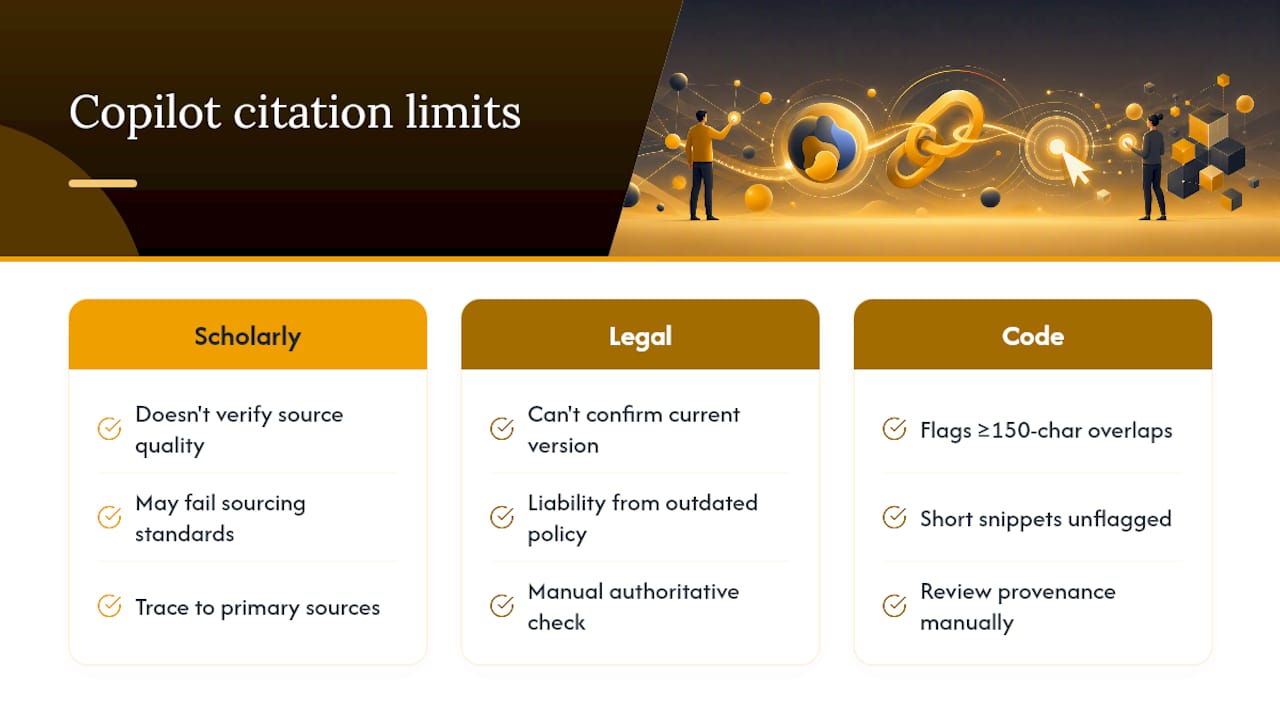
Copilot citations are strong for grounding an answer in existing enterprise content, but they were never built to replace rigorous academic or legal sourcing, and treating them as equivalent is where people get into trouble.
For scholarly work, Copilot citations tell you what document informed an answer, not whether that document itself meets a discipline's sourcing standards. A citation pointing to an internal report doesn't verify the report's own methodology or peer review status. That's precisely the gap Virginia Tech's guidance on citing AI-generated content addresses: treat Copilot's output as an algorithmic source in its own right, and keep tracing factual claims back to their primary sources by hand.
Legal and regulatory contexts pose a sharper limitation. A citation might point to the right internal policy document today, but Copilot has no way to confirm that document is the current, legally binding version unless someone has built version control into the underlying metadata. When the cost of citing an outdated policy is real liability, manual verification against the authoritative source isn't optional.
Code is its own case. GitHub Copilot's code referencing only flags a match when a suggestion overlaps 150 or more characters from a public repository, within a tight 10 to 20 millisecond latency budget. Shorter snippets that still originated from licensed code can slip through without a flag, which means code referencing catches obvious overlap, not every provenance question a legal or compliance team might have.
Getting Copilot Citations Into Your Existing Citation Workflow
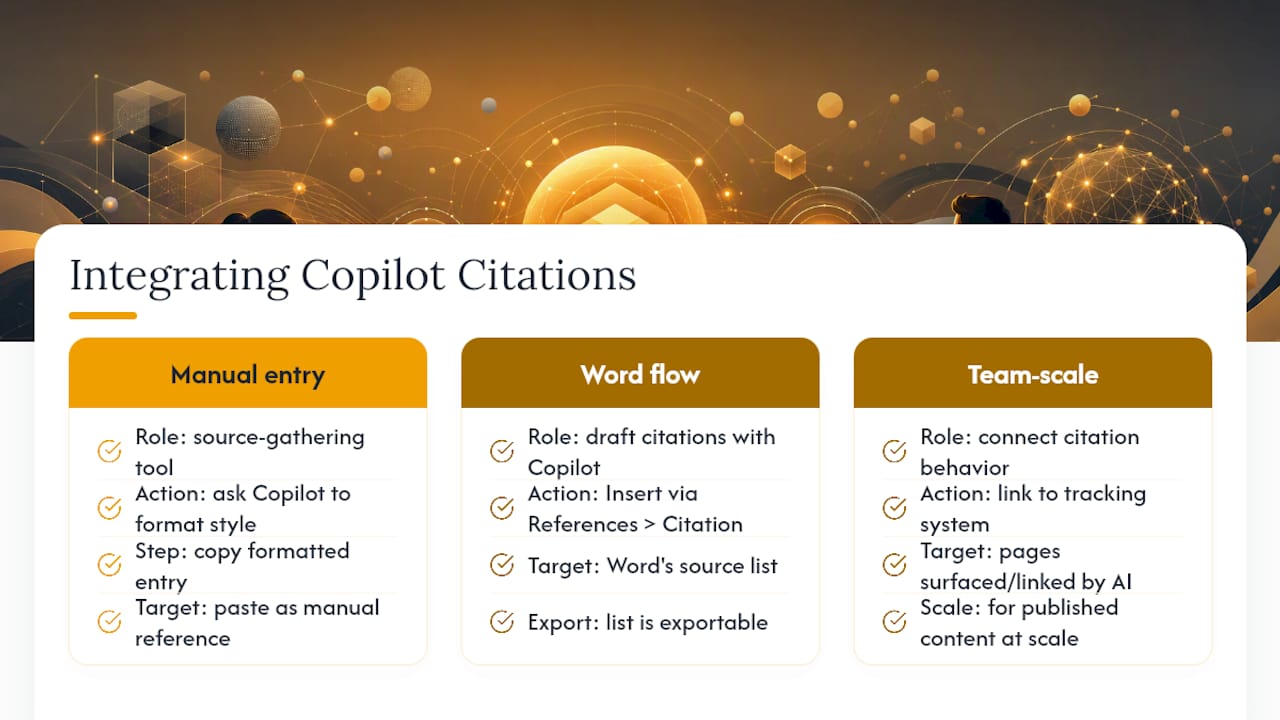
Copilot doesn't natively export to reference managers like Zotero or EndNote, so getting its output into an established academic workflow takes one extra step, not zero.
The most reliable path is treating Copilot as a source-gathering tool rather than a bibliography generator. Ask Copilot or Edge to format a source into a specific style, APA or Chicago for instance, then copy that formatted entry into your reference manager as a manual entry rather than trying to import it directly. Most reference managers accept manually typed entries just as cleanly as imported ones, so this isn't a downgrade in citation quality, just a manual bridge.
For Word-based workflows, the integration is tighter. Anything you cite through References > Insert Citation lives in Word's own source list, which means a Copilot-assisted first draft and a manually researched bibliography end up in the same, exportable format. That list can then feed into whatever citation manager your institution or team standardizes on.
For teams managing citation-worthy content at scale rather than individual bibliographies, the more useful integration point isn't a reference manager at all. It's connecting Copilot's citation behavior to whatever system tracks which of your published pages are actually getting surfaced and linked by AI assistants in the first place, since that's a different problem than formatting a single reference correctly.
Why Citation Design Quietly Decides Whether Copilot Gets Adopted
Visible, clickable citations turn a Copilot answer into something a person can act on immediately, not just something they have to trust. That single difference is what separates teams that adopt Copilot broadly from teams that keep it at arm's length. When a citation resolves cleanly and points somewhere verifiable, the natural next step is a click, not a second-guessing email to a colleague. Instrumenting those click-throughs tells you which citation types are actually earning trust, and which ones are being ignored no matter how technically correct they are.
— Geraldine
Track Where AI Assistants Are Actually Citing Your Brand
Getting your own plugin's citations right is one problem. Knowing whether ChatGPT, Gemini, Claude, or Perplexity are citing your brand's content at all, across every source they pull from, is a much bigger one, and it's the problem Authoritylayer was built to solve.
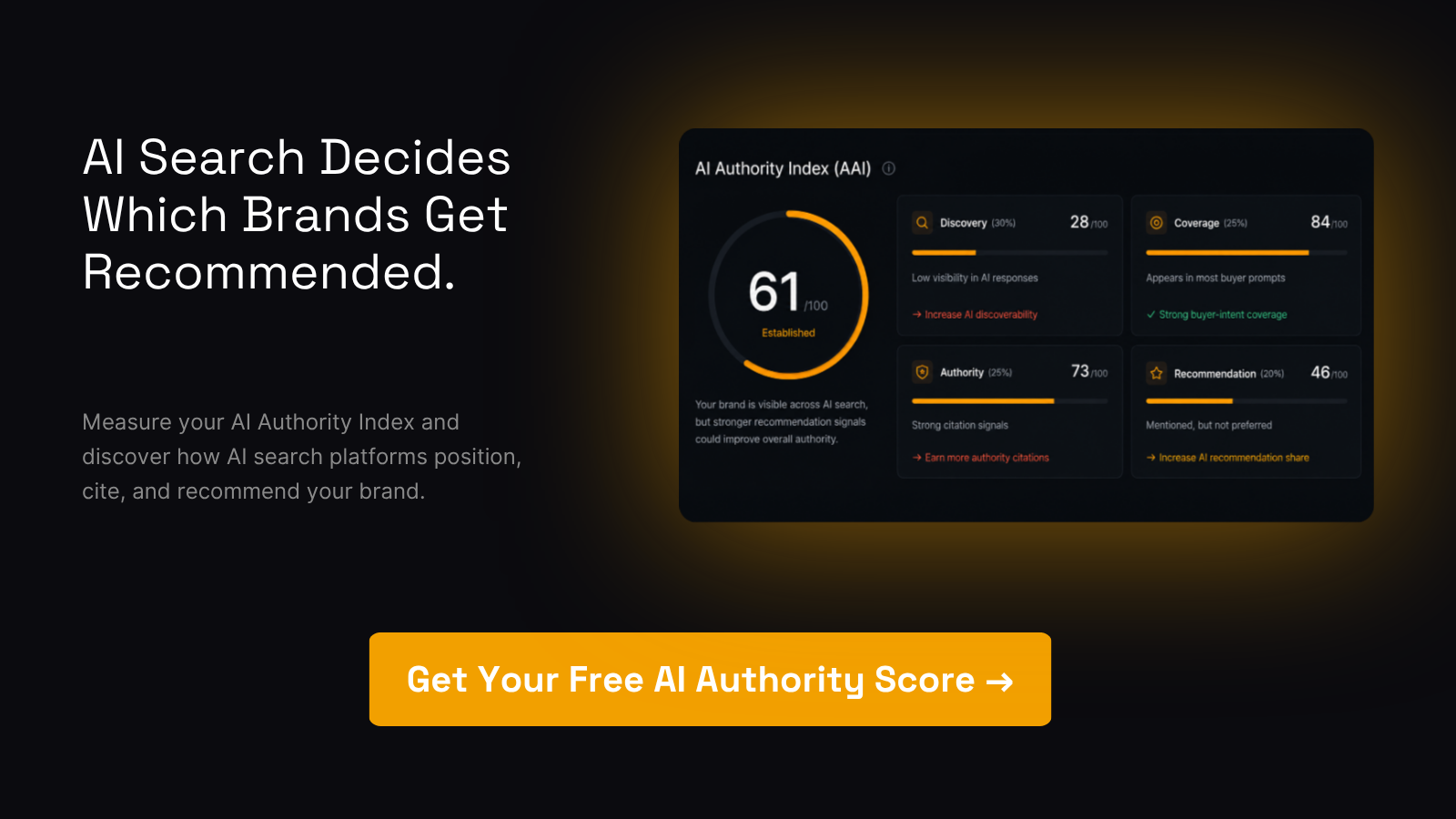
Authoritylayer measures your AI recommendation share, tracks citation visibility across major AI assistants, and scores your standing with its AI Authority Index, so you're not guessing which pages are citation ready and which ones AI assistants are quietly skipping. A Monthly AI Visibility Report turns that into prioritized fixes: which URLs need cleaner metadata, which pages are missing entirely from AI-generated answers, and where competitors are picking up citations you should be getting. Pair it with a citation audit to spot pages that need cleanup before they can be cited at all. Start with a free AI visibility scan to see exactly where your brand stands today.
Sources
- Show citations with response semantics — Microsoft Learn
- Refer to specific files and more in Microsoft Copilot — Microsoft Support
- How to create citations — Microsoft Edge learning center
- Introducing code referencing for GitHub Copilot — GitHub Blog
FAQ
How Do I Automatically Generate Citations With Copilot?
Ask Copilot or Edge to format a specific URL or block of text into a named citation style, such as APA or MLA, and it will return a properly formatted entry using the Edge citation tools. For a full bibliography, add each source through Word's References > Insert Citation feature and let Word generate the list automatically.
How Do I Get Copilot to Reference a Specific File?
Type / in Copilot Chat and select the file, meeting, or person from the References menu, or upload a local file directly. Files typically become referenceable a few minutes after you've opened, edited, or shared them, according to Microsoft Support.
What Are the Main Types of Citations Copilot Produces?
Copilot generally produces three kinds: inline references to Microsoft 365 files or meetings shown through the References menu, formatted academic citations in styles like APA or Chicago through Edge and Word, and developer-defined citations from plugins or connectors mapped through response_semantics.
What Counts as a Reference Versus a Citation in Copilot?
A reference is the raw item Copilot pulled from, a file, meeting, or web result, shown in the References dropdown beneath an answer. A citation is what Copilot displays to the user, and it only becomes clickable when that underlying reference includes a valid, resolvable URL.
Can Authoritylayer Help Track Whether AI Assistants Cite My Content?
Yes. Authoritylayer monitors how often AI assistants like ChatGPT, Gemini, Claude, and Perplexity cite or recommend your brand, and its AI Visibility Report flags which of your pages need citation-ready metadata to be surfaced more consistently.